Step 1: Open the Settings Menu
Look for the gear icon (⚙️) in the top-right corner of the extension.
Click on it, then select Settings from the dropdown menu.
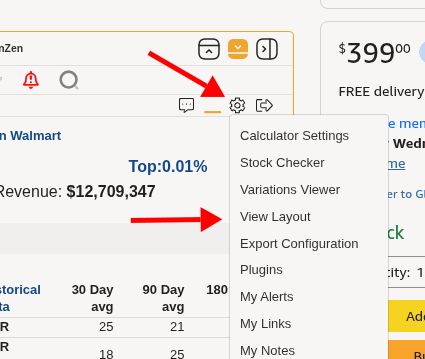
Step 2: Navigate to View Layout
In the Settings panel, find the left-hand navigation menu.
Click on View Layout (this is usually under the "Display" or "Preferences" section).
Step 3: Scroll to the ZenGraph Section
Scroll down the View Layout page until you reach the section labeled ZenGraph Display Mode.
? Tip: This section is usually near the bottom of the page
Step 4: Select Your Preferred Display Option
You will see radio buttons with the following choices. To disable the full ZenGraph view, choose one of these two options:
| Option | What it does |
|---|---|
| Enable ZenGraph Chart-Only in Calculator | Disables the full graph tabs. Shows only the chart inside the Calculator tool. |
| Enable Full ZenGraph (All Tabs) | Keeps the full ZenGraph active. (Choose this if you want to re-enable it later.) |
To disable ZenGraph completely, select Enable ZenGraph Chart-Only in Calculator. (This limits ZenGraph to just the calculator, effectively turning off the full-page graph tabs.)
Step 5: Save Your Changes
Scroll to the very bottom of the page.
Click the Save button.
Step 6: Confirm the Change
Navigate to any other tab to verify that the full ZenGraph tabs are no longer visible.
Need to Re-enable It Later?
If you change your mind and want the full ZenGraph back, simply repeat Steps 1–5 and select Enable Full ZenGraph (All Tabs) instead, then click Save
Was this article helpful?
That’s Great!
Thank you for your feedback
Sorry! We couldn't be helpful
Thank you for your feedback
Feedback sent
We appreciate your effort and will try to fix the article